How AI-Powered Browser Tools Are Changing Everyday Productivity
Modern AI-powered tools run entirely inside your browser using on-device computation and pre-trained models compiled to WebAssembly or JavaScript. This means there is no server round-trip for your data — the heavy lifting happens locally, right on your device, in milliseconds.
NexTools AI-powered tools bring this capability to practical, everyday tasks: instant text summarisation, smart unit conversions with natural language input, AI-assisted date and time calculations, and intelligent parsing of ambiguous queries — all without signing up for an account or sharing your data with a third-party API.
Because processing stays local, your privacy is preserved by design. Sensitive figures you enter into a calculator, personal notes you run through a summariser, or documents you parse with an AI tool never leave your machine. This makes NexTools AI tools a safe choice for professionals working with confidential data.
Practical use cases include: converting complex natural language time expressions ("what is 3 weeks from next Monday?"), summarising lengthy copied text into bullet points, extracting structured data from unstructured input, and getting instant explanations for financial or health metrics — all from a single bookmark in your browser.
AI Is No Longer Just for Developers
Not long ago, extracting text from a scanned document required specialized OCR software costing hundreds of dollars. Transcribing an hour of audio meant hiring a professional or waiting days for a service. Today, these capabilities live in your browser — free, instant, and requiring zero technical knowledge.
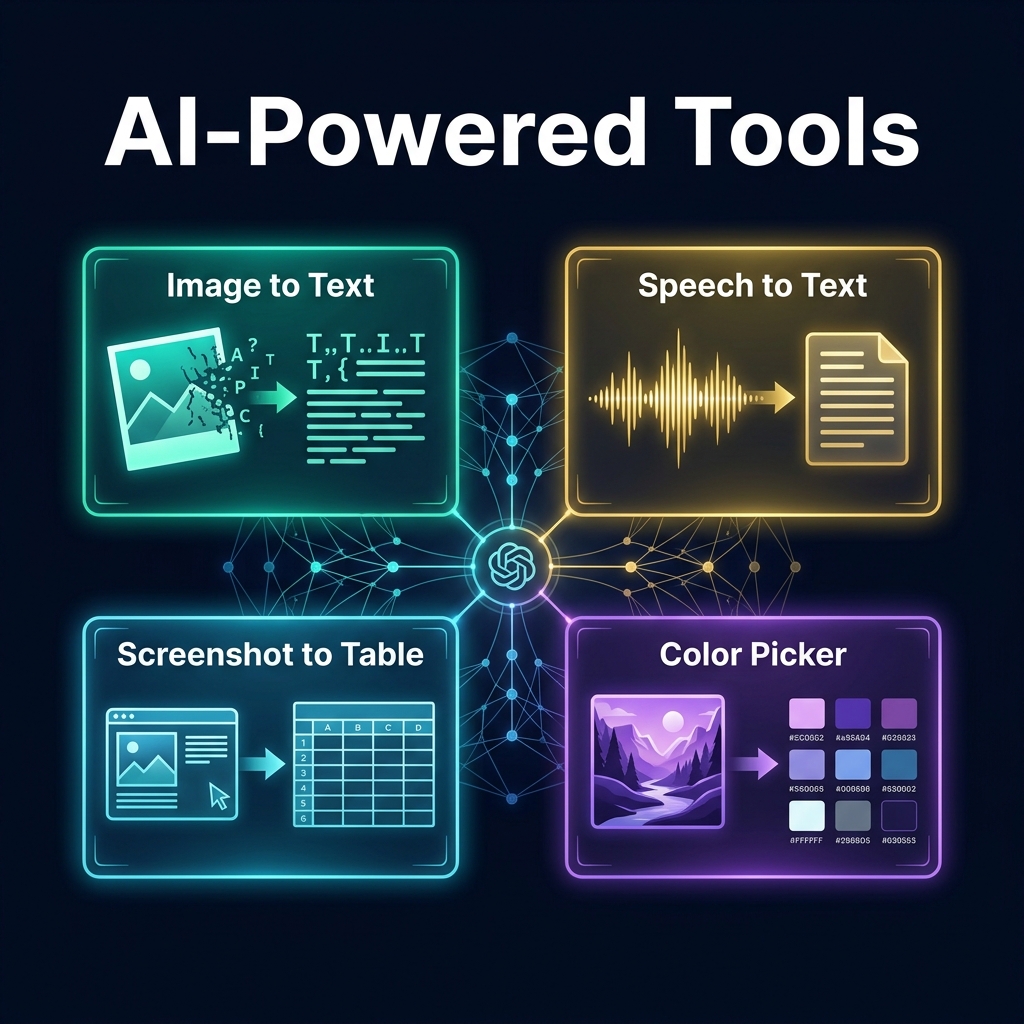
At NexTools, we've built four AI-powered extraction tools that handle the busywork of converting visual and audio data into text, tables, and color palettes. In this guide, we'll walk through each one, show you exactly how it works in three steps, and help you figure out which ones belong in your everyday workflow.
🖼️ Tool 1: Image to Text (OCR)
What it does: Extracts readable text from any image — scanned documents, photos of receipts, screenshots of PDFs, handwritten notes, or photos of whiteboards — and gives you clean, copyable, searchable text.
This technology is called Optical Character Recognition (OCR), and NexTools runs it entirely in your browser using Google's Tesseract.js engine — meaning your images never leave your device.
How It Works — 3 Steps
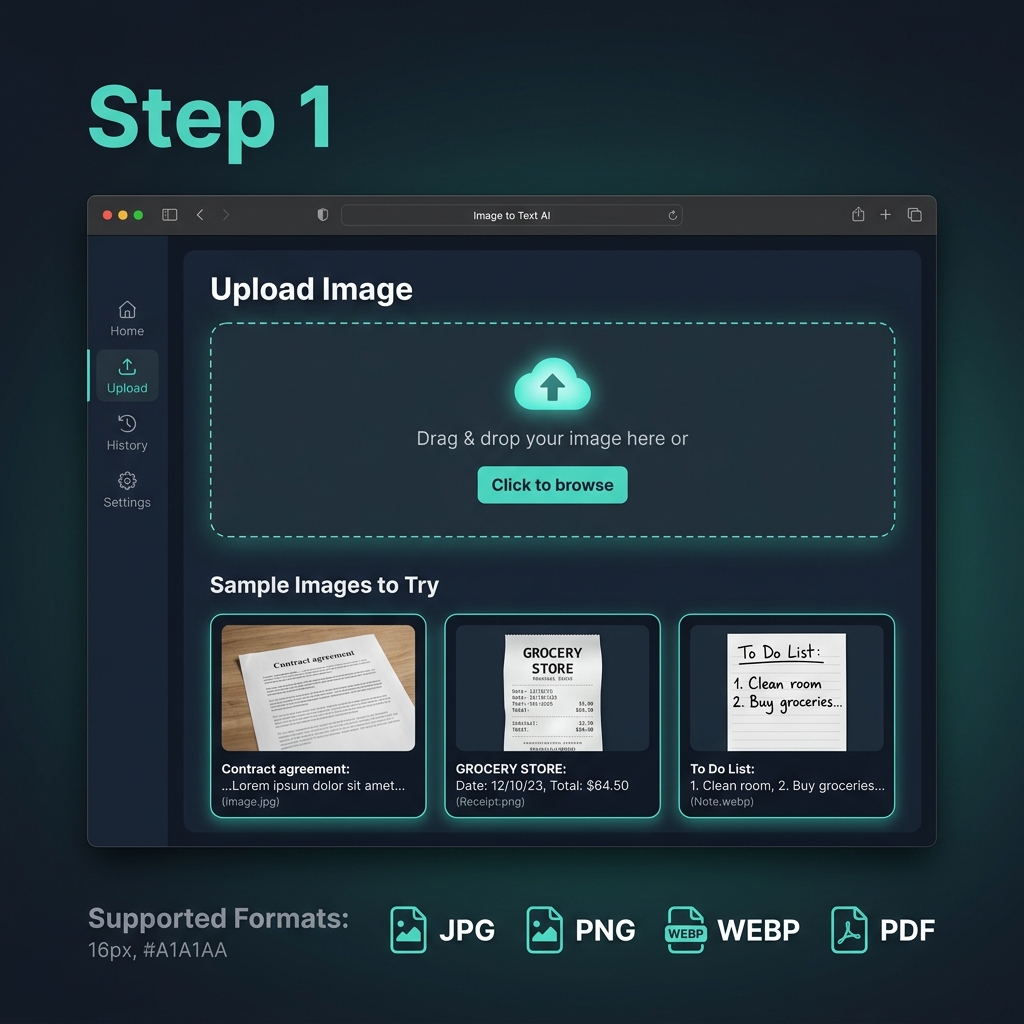
Step 1: Upload any image — drag & drop or browse. Supports JPG, PNG, WEBP, and PDF page captures.
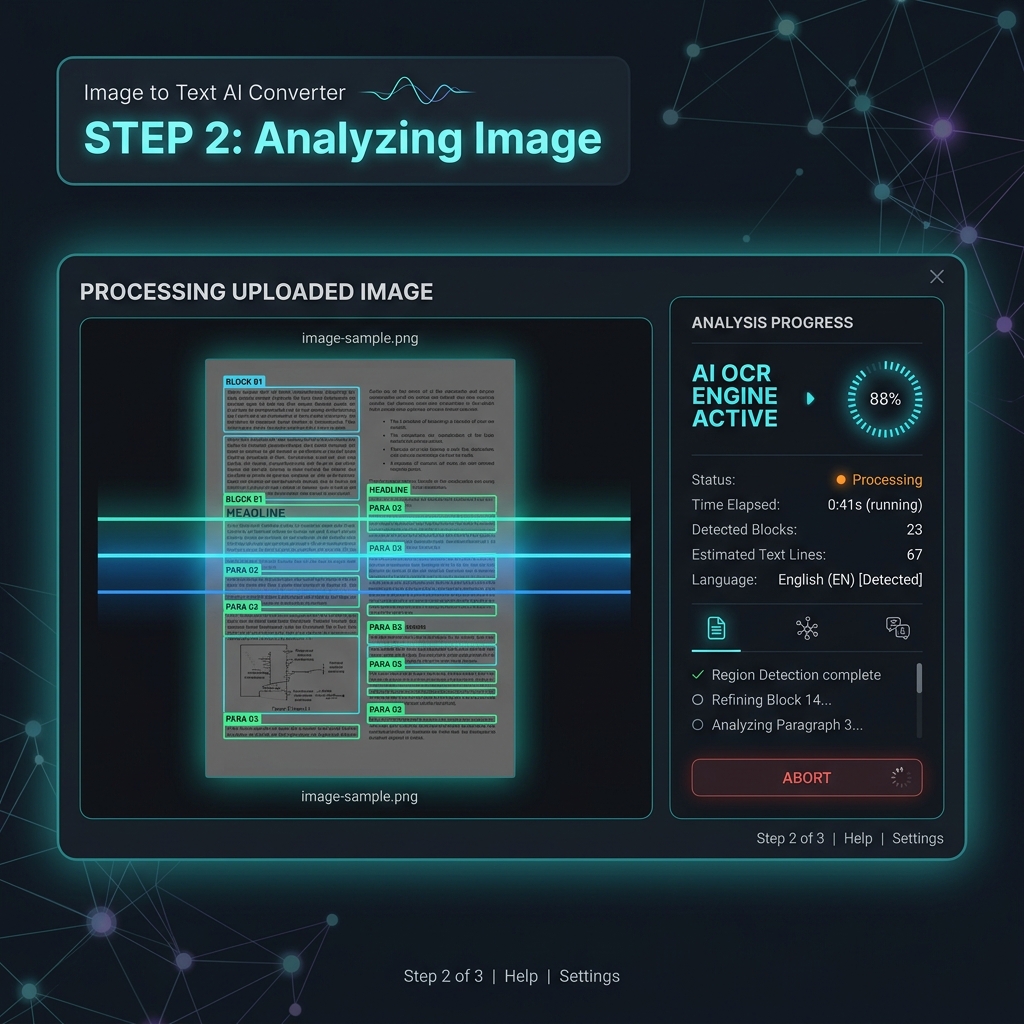
Step 2: The AI OCR engine scans your image, detects text regions, and identifies language automatically.
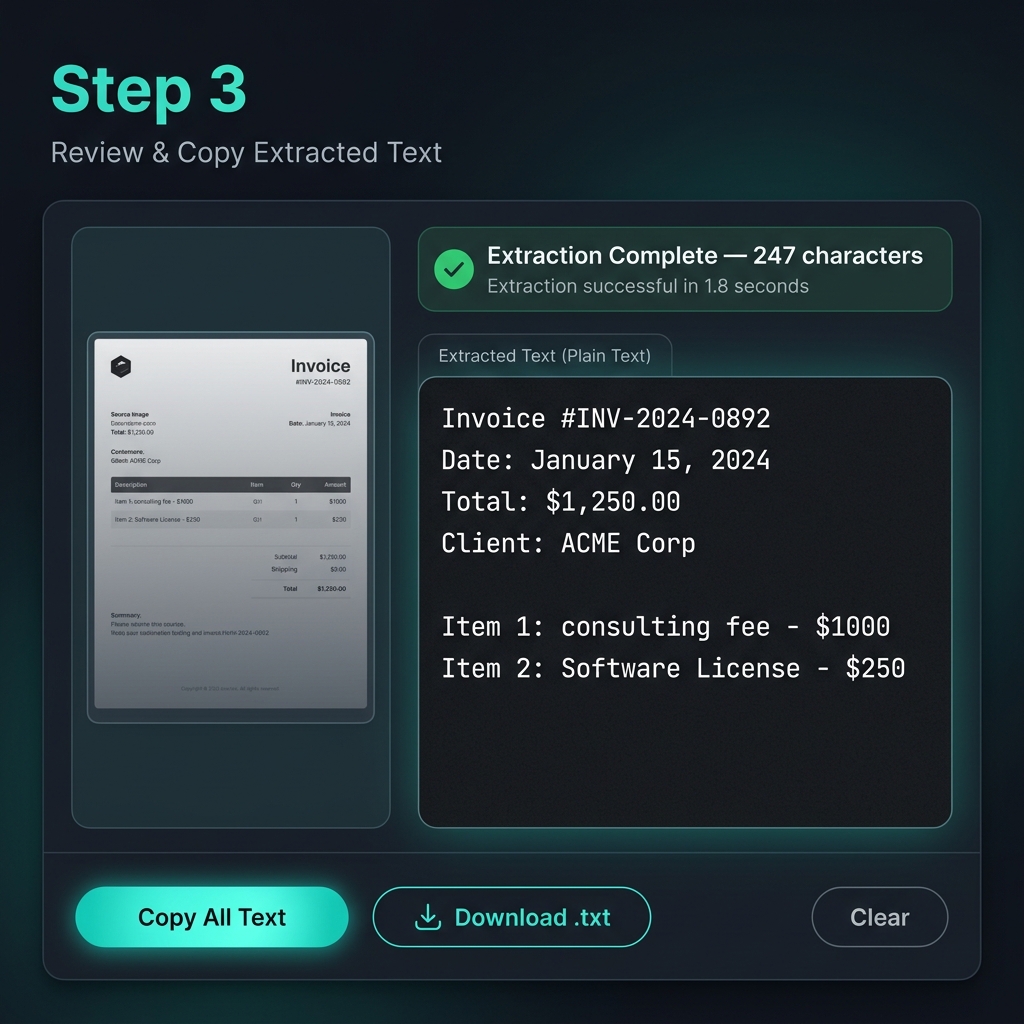
Step 3: Copy the extracted text to clipboard, download as .txt, or use directly. Zero data leaves your browser.
Best Use Cases
- Digitising receipts and invoices — extract line items for expense reporting
- Copying text from PDFs that have copy-protection or are image-only scans
- Transcribing whiteboard photos from meetings
- Making handwritten notes searchable — photograph a notebook page, extract the text
- Extracting text from memes or screenshots for content moderation or research
💡 Pro tip: For best OCR accuracy, use high-contrast images (dark text on white background) and ensure the text is sharp and not rotated more than 15°.
🎙️ Tool 2: Speech to Text
What it does: Transcribes spoken words into text in real time, directly in your browser. Uses the Web Speech API — the same engine that powers voice search in Chrome — to convert your microphone input into a readable, editable transcript.
No audio files are uploaded to any server. Everything is processed locally through your browser's native speech recognition capability, making it both fast and private.
How It Works — 3 Steps
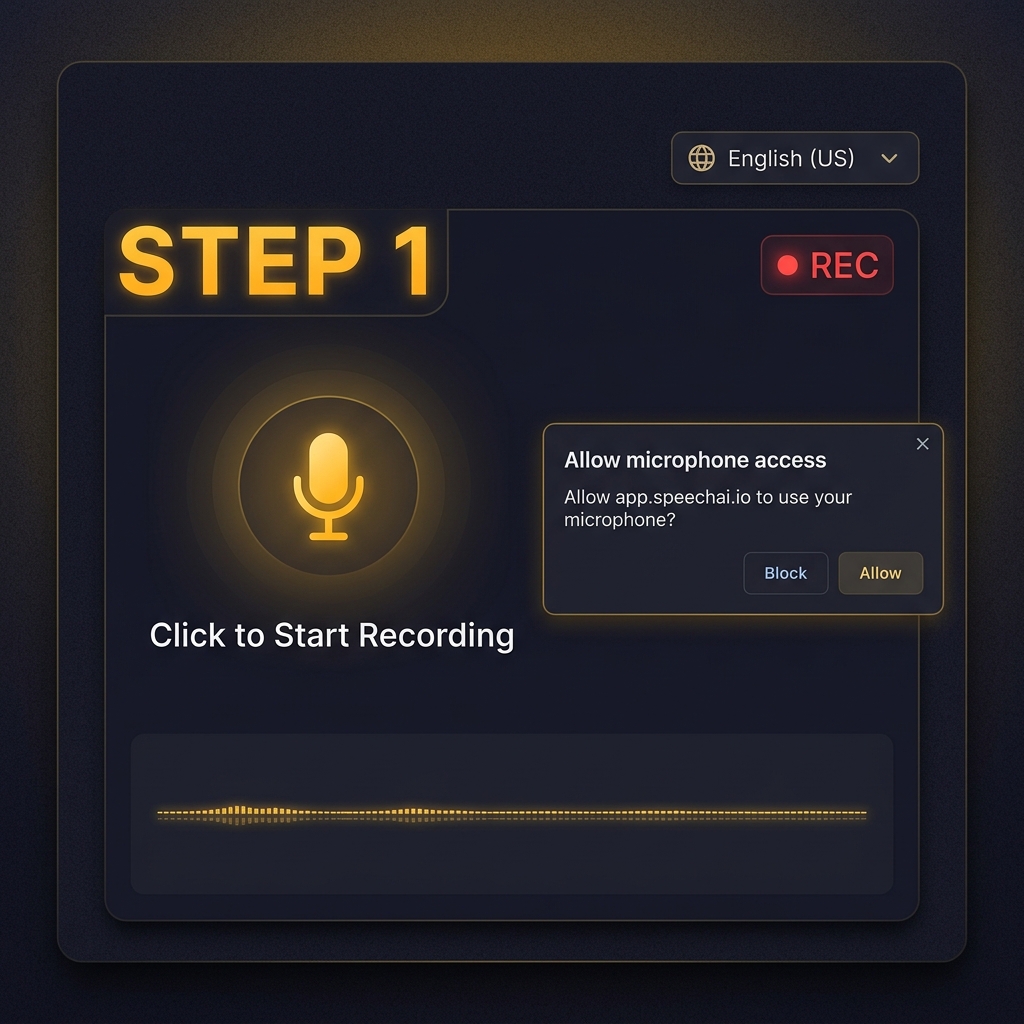
Step 1: Grant microphone permission and select your language. Supports English, Spanish, French, Hindi, German, and more.
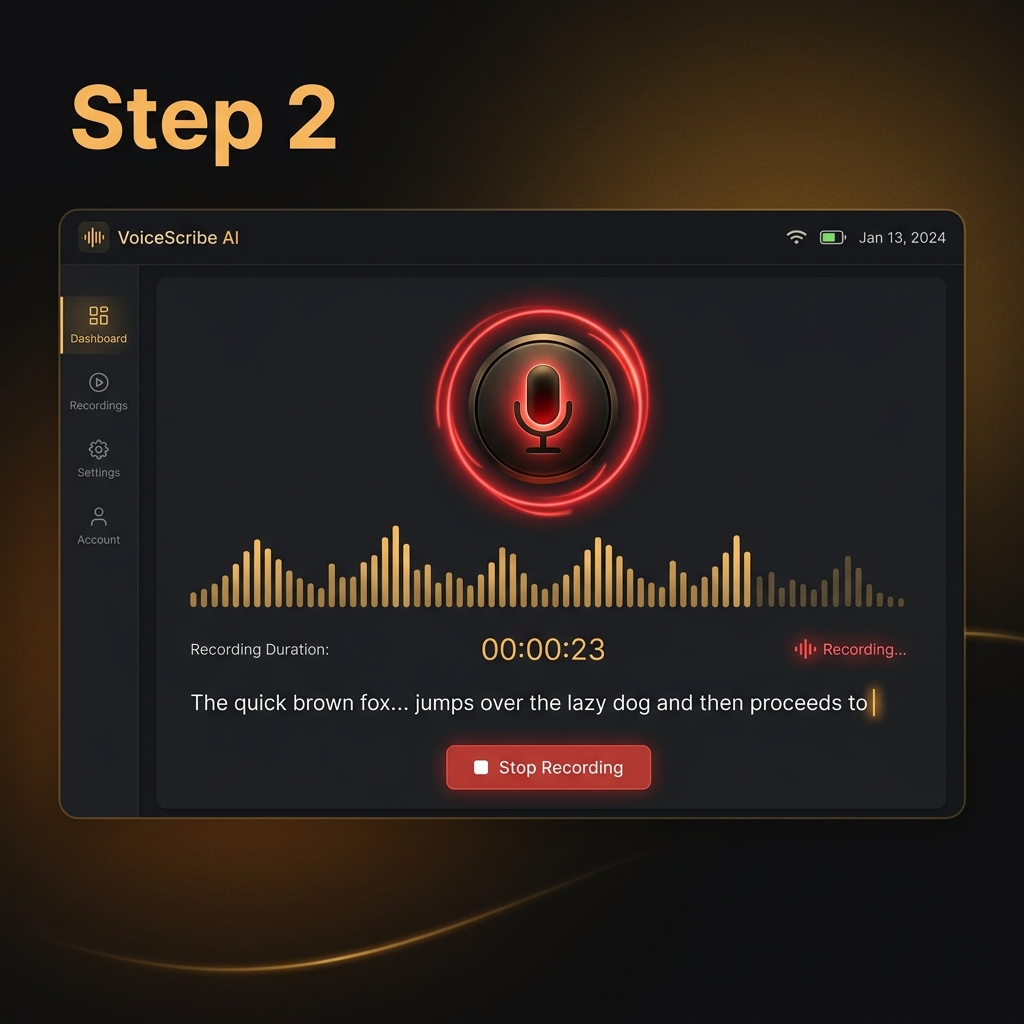
Step 2: Speak naturally. Words appear in real time as you talk — the live waveform shows your audio is being captured.
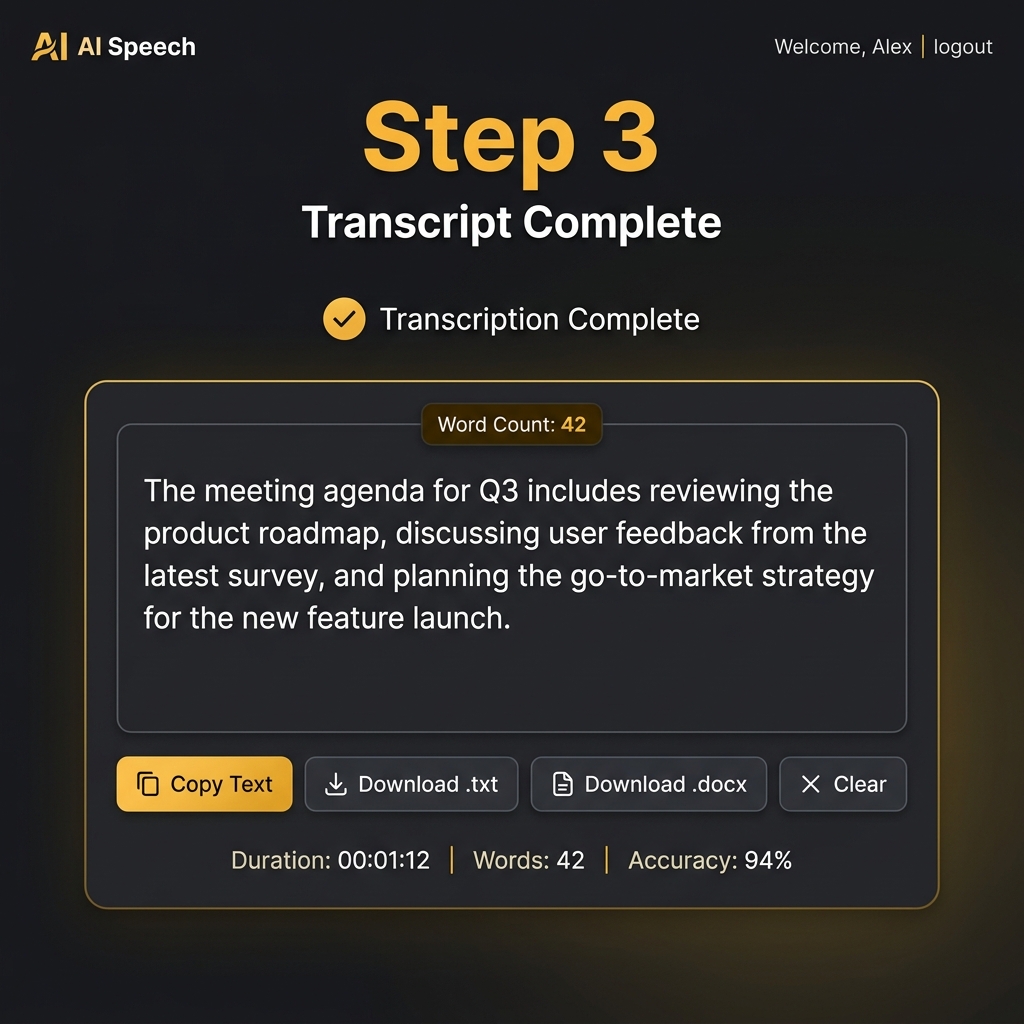
Step 3: Stop recording. Copy the full transcript, download as .txt or .docx, or paste directly into any document.
Best Use Cases
- Meeting notes — dictate key points while the meeting is happening
- Blog drafting — speak your first draft, then edit — it's often faster than typing
- Accessibility — for users who find typing difficult or painful
- Quick memos and reminders — capture thoughts without touching the keyboard
- Subtitles and captions — generate a rough transcript to clean up later
💡 Pro tip: Speak at a natural, conversational pace — not too fast, not too slow. Eliminate background noise where possible. The tool works best in Chrome and Edge.
📊 Tool 3: Screenshot to Table — Our Unique Differentiator
This is where things get genuinely impressive. Screenshot to Table takes a screenshot of any tabular data — from a website, a PDF, a legacy app, or a report — and converts it into a fully editable, downloadable HTML/CSV table.
If you've ever manually retyped data from a table in a PDF into a spreadsheet, you know how painfully slow that process is. Screenshot to Table eliminates it entirely.
Why is this a differentiator? Because most OCR tools only extract raw text. They give you a blob of characters with no structure. Screenshot to Table understands the layout — which values belong to which rows and columns — and reconstructs the relational structure of the data.
How It Works — 3 Steps
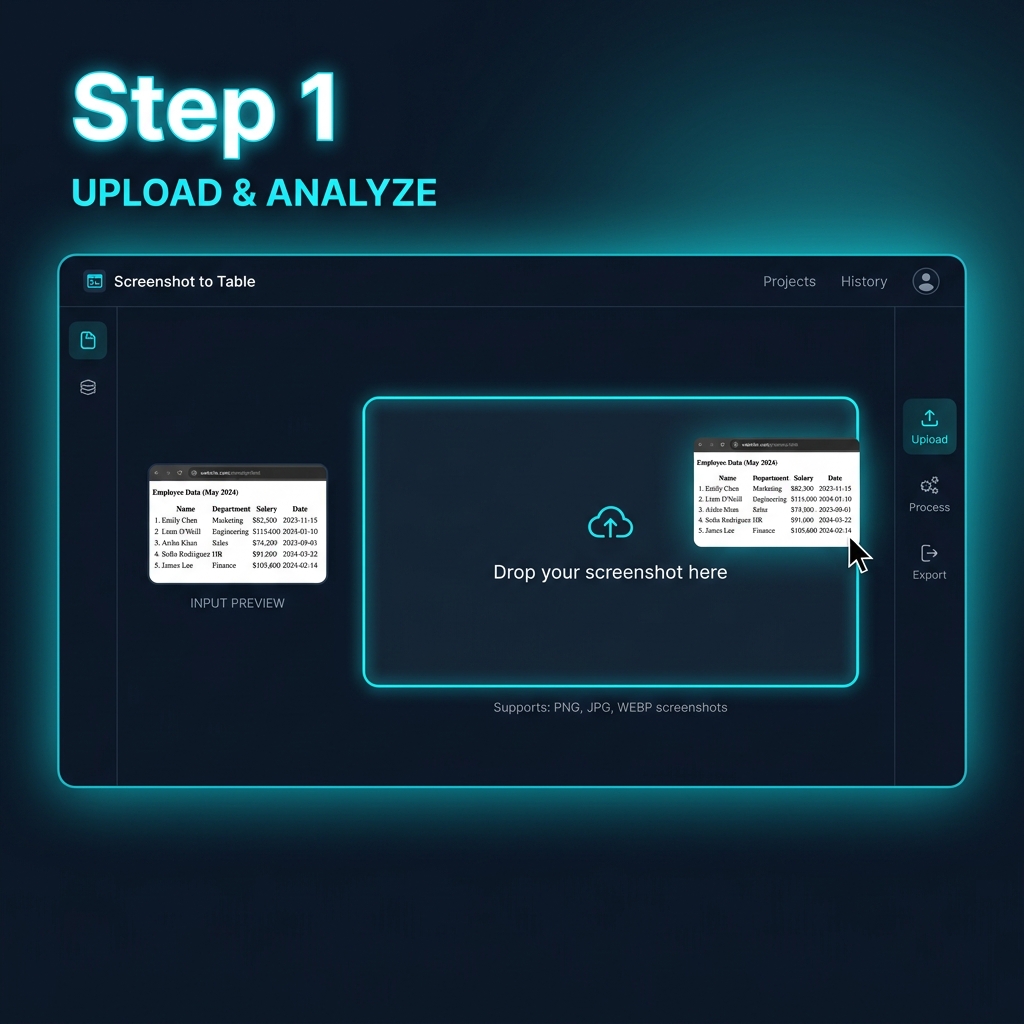
Step 1: Upload any screenshot containing a table — from a website, PDF, report, or legacy application.
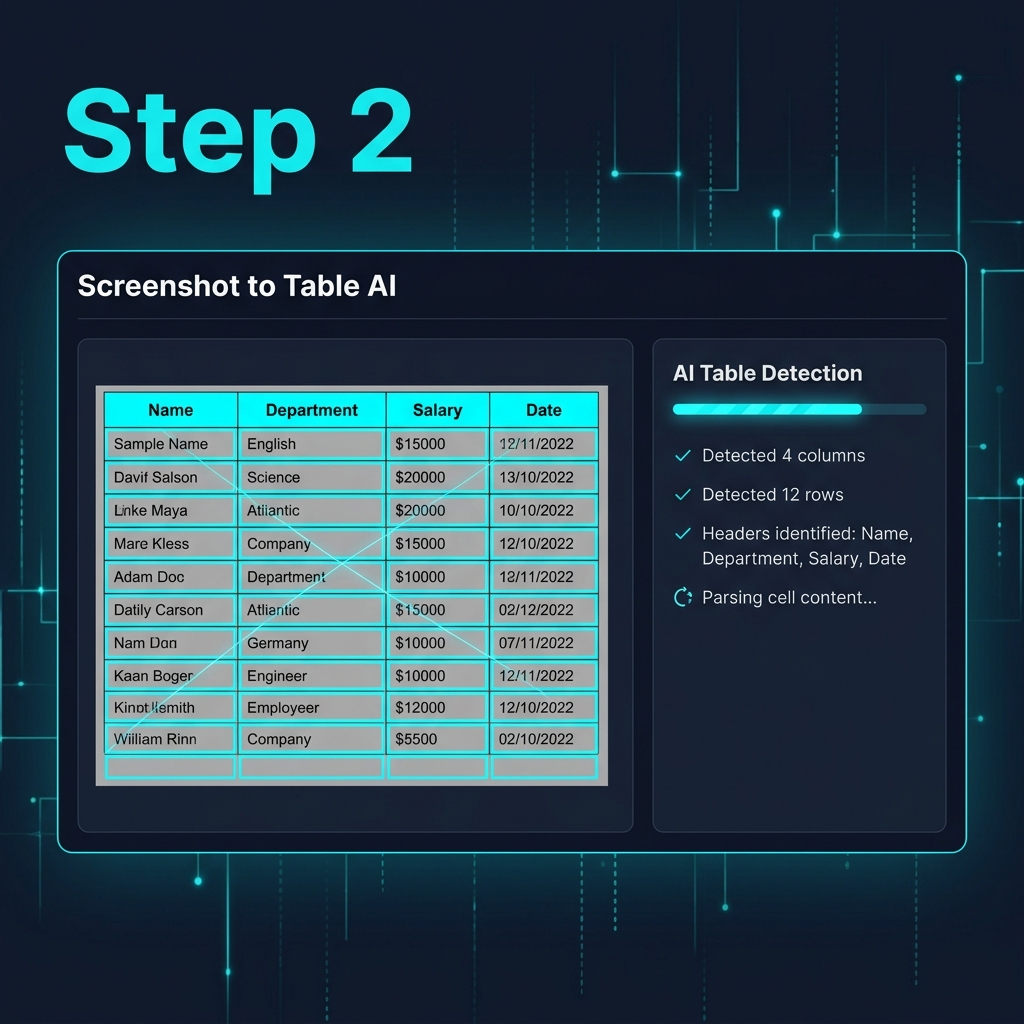
Step 2: The AI detects column headers, row boundaries, and cell content — reconstructing the full table structure.
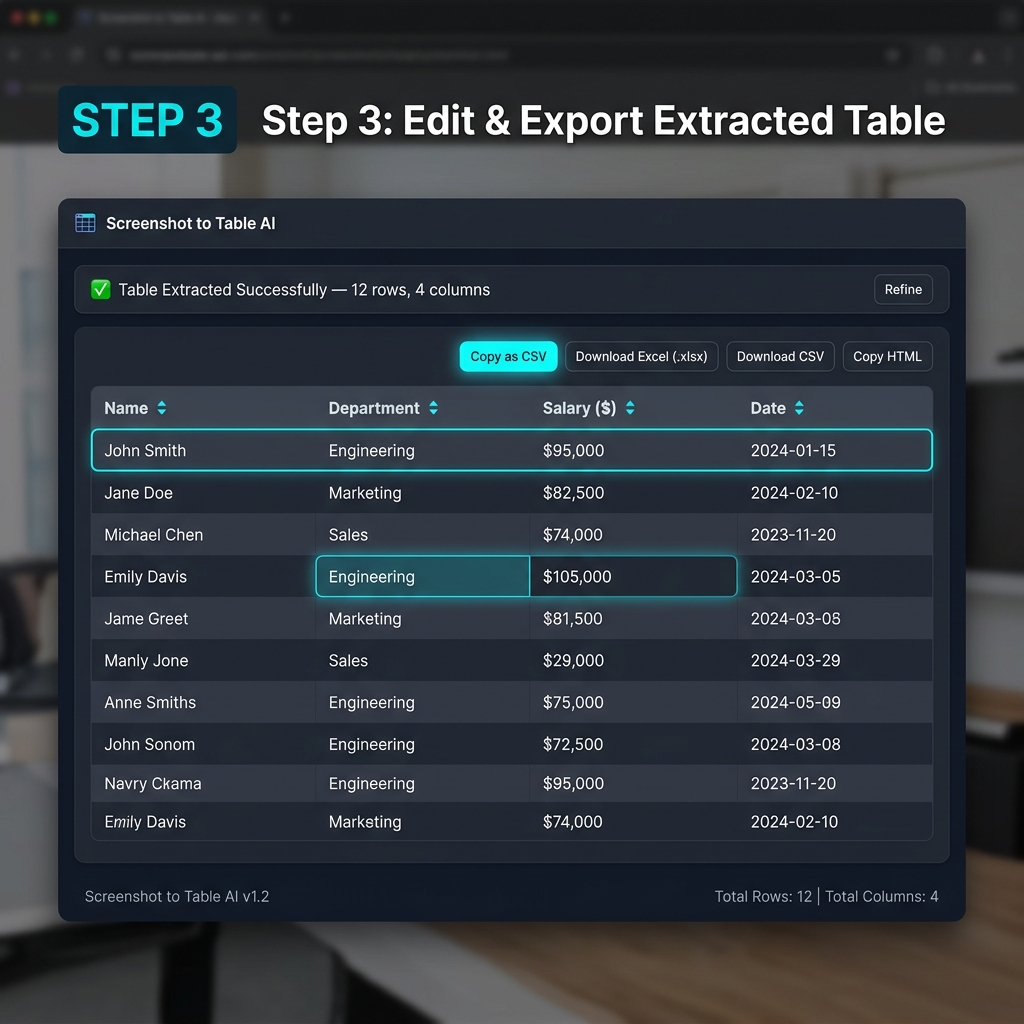
Step 3: Your clean, editable table is ready. Export as CSV, Excel (.xlsx), or copy as HTML — in seconds.
Real-World Scenarios Where This Saves Hours
| Scenario | Without the Tool | With Screenshot to Table |
|---|---|---|
| Copy data from a locked PDF report | Manual retyping: 45–90 min | Screenshot + extract: <30 seconds |
| Scrape a price table from a competitor's website | Copy-paste, reformat: 20 min | Screenshot + export CSV: 1 minute |
| Extract employee data from a legacy HR system | Manual entry or dev work: hours | Screenshot batch + CSV: 5 minutes |
| Import a table from a slide deck | Rebuild in Excel: 15–20 min | Screenshot + download: <1 minute |
🚀 Unique advantage: Unlike generic OCR, Screenshot to Table understands structure, not just characters. It knows a table header from a data row. That intelligence is the difference between a wall of text and a spreadsheet you can actually use.
🎨 Bonus: Image Color Picker
While not a text-extraction tool, the Image Color Picker fits perfectly in the AI extraction family: it extracts color intelligence from visual input. Upload any image — a brand logo, a website screenshot, a photograph, an artwork — and the tool identifies the dominant colors and their precise hex codes, RGB values, and color names.
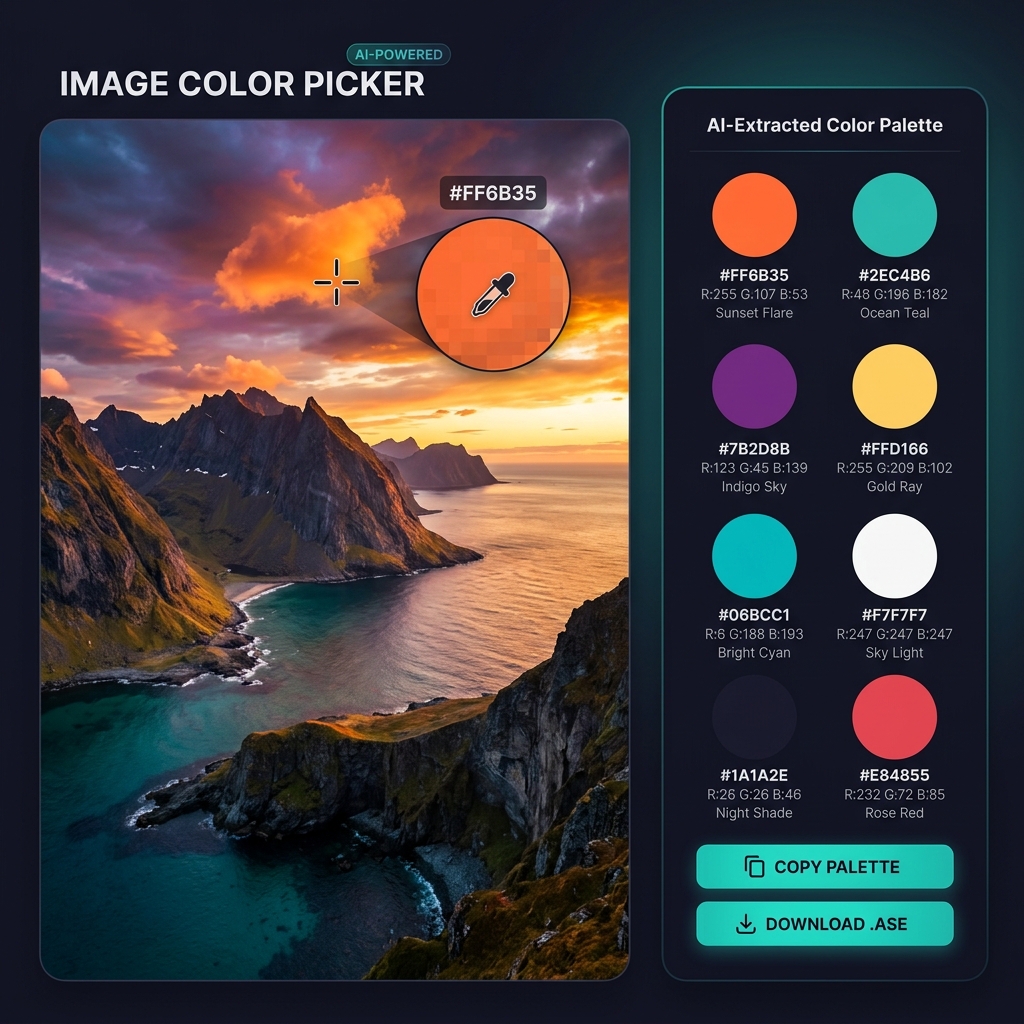
Upload any image, click any pixel, and instantly get the exact hex code, RGB, and HSL values — plus an AI-extracted dominant color palette.
Who Uses This?
- Designers extracting brand colors from a logo or mockup to use in CSS
- Developers matching pixel-perfect colors from a design spec they can't access
- Marketers building brand guidelines from existing visual assets
- Content creators matching thumbnail color palettes for visual consistency
The tool works by rendering the image on an HTML5 canvas and sampling pixel color values at the cursor position — all computation is local, zero uploads.
Which Tool Should You Use When?
| Your Goal | Best Tool |
|---|---|
| Copy text from a photo, scan, or locked PDF | Image to Text |
| Transcribe a voice memo, dictate notes, or caption audio | Speech to Text |
| Extract a data table from a screenshot or PDF | Screenshot to Table |
| Identify colors in an image for design work | Image Color Picker |
| You have a handwritten document to digitise | Image to Text (handwriting mode) |
| You want to draft content hands-free | Speech to Text |
Privacy: Everything Stays in Your Browser
All four tools process data entirely client-side. Here's what that means in practice:
- Your images are never uploaded to any NexTools server
- Your voice recordings are processed by your browser's Web Speech API — not stored anywhere
- No account or login is required
- No cookies track your usage of these tools
- You can use them entirely offline (Image Color Picker works without internet; others require browser AI APIs)
This is a fundamental design principle at NexTools: your data is yours. The tool comes to your data, not the other way around.
Key Takeaways
- 🖼️ Image to Text is your go-to for digitising any visual text — receipts, documents, whiteboards, handwriting.
- 🎙️ Speech to Text is the fastest way to capture spoken content — meetings, ideas, dictation — without touching a keyboard.
- 📊 Screenshot to Table is a unique tool that preserves data structure — turning screenshots of tables into actual spreadsheets. This alone can save hours per week.
- 🎨 Image Color Picker is essential for designers and developers who need pixel-accurate color values from any visual source.
All four are free, require no signup, and run entirely in your browser. Try them now and see how much time you save this week.